[Tiro Mobile] Managing Notes with Folders
Folders are Now Available on the Mobile App!
Now you can manage your notes more systematically and efficiently using folders. Folders allow you to group related notes, helping you keep your Tiro notes neat and organized.
Reading time: 2 minutes
This guide includes:
Easily organizing and finding notes using folders
Using the Ask Tiro feature within folders
1. Folder Setup
1) Creating a Folder
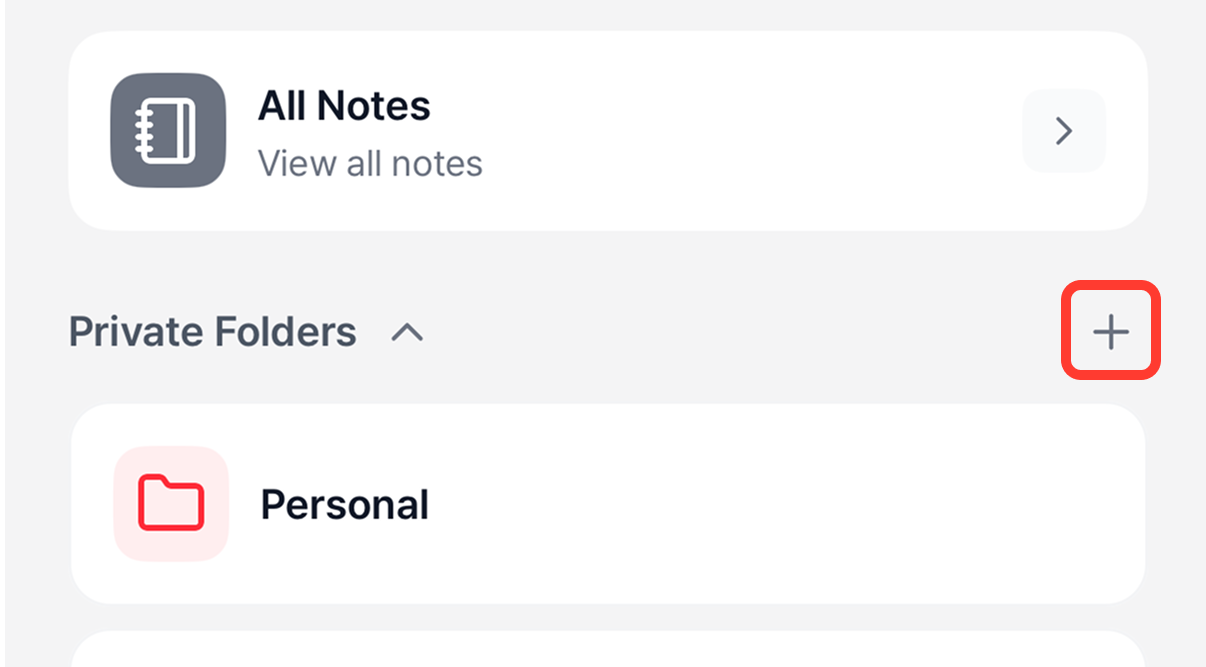
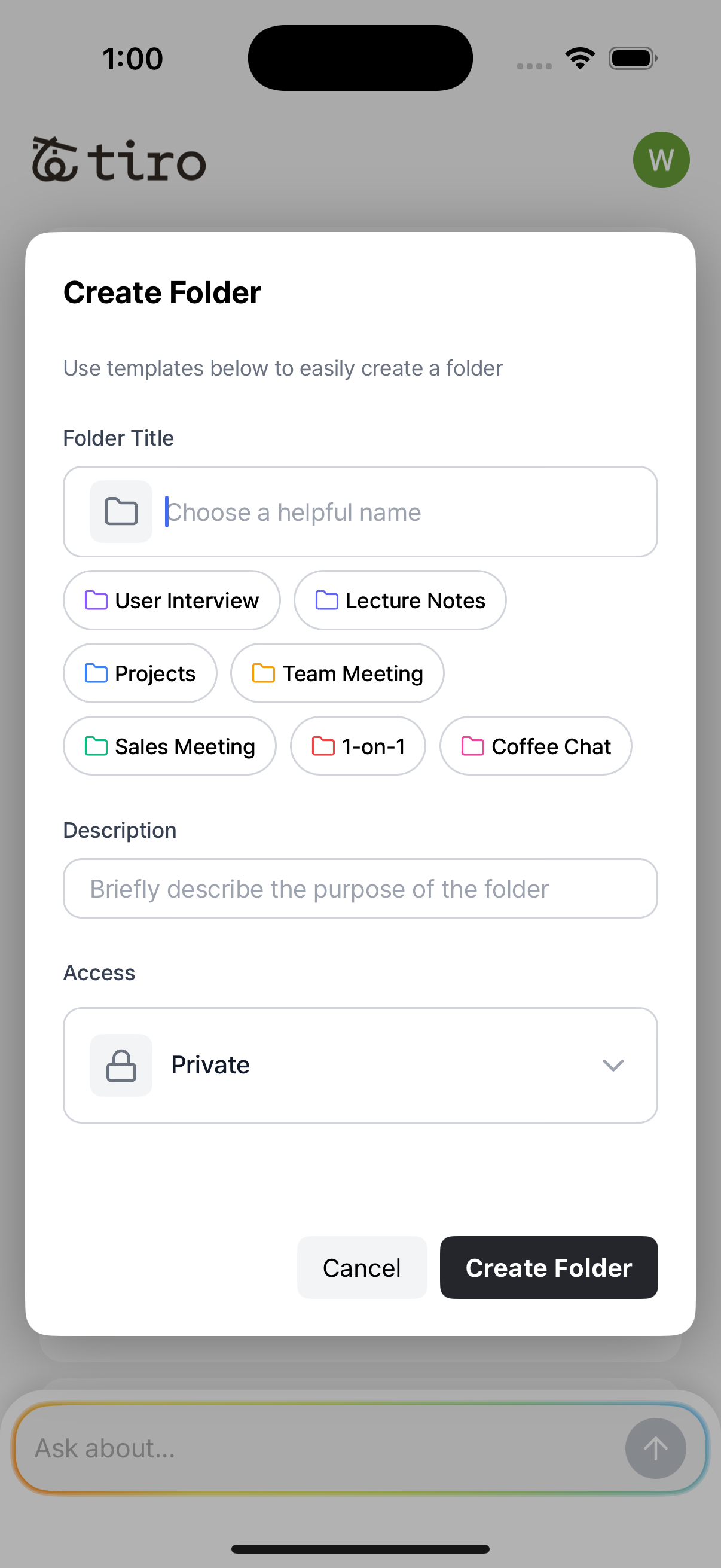
Use the folder feature to categorize notes easily for various scenarios such as business meetings, classes, and seminars. Folders can be managed directly from the main screen.
What’s the difference between personal and team folders?
Personal folders are visible only to you. To directly share notes with your team, use the team folders provided in the team plan.
2) Editing a Folder
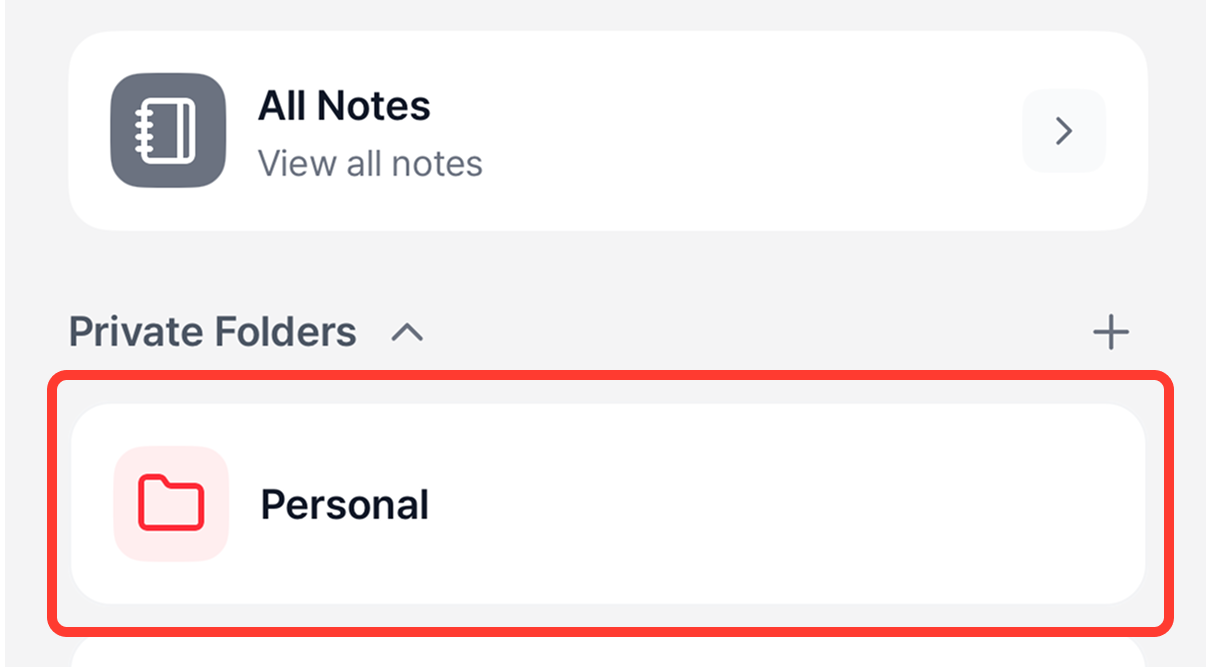
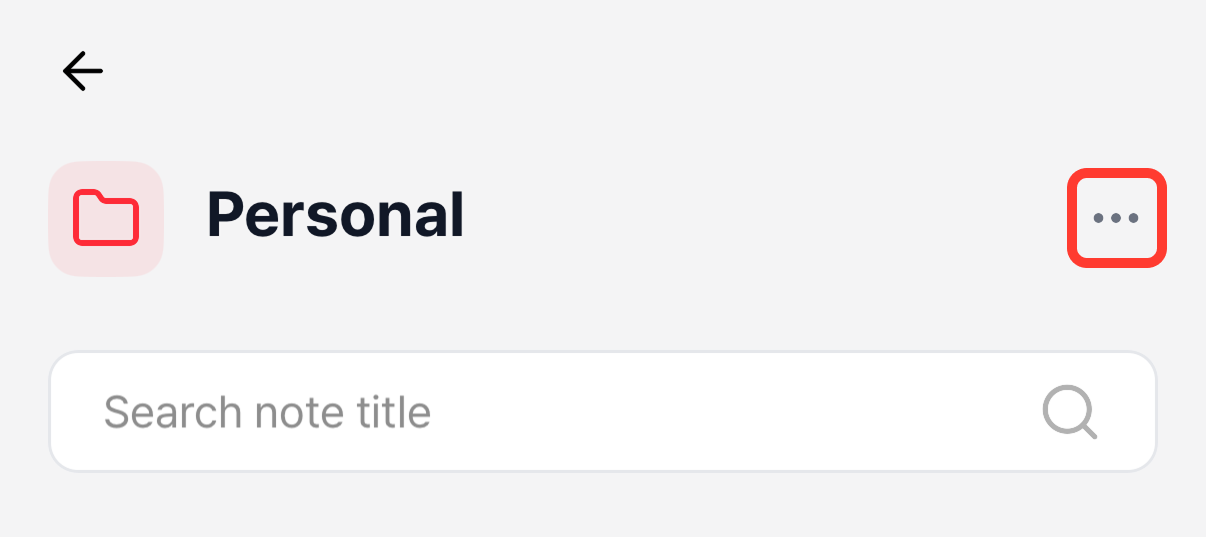
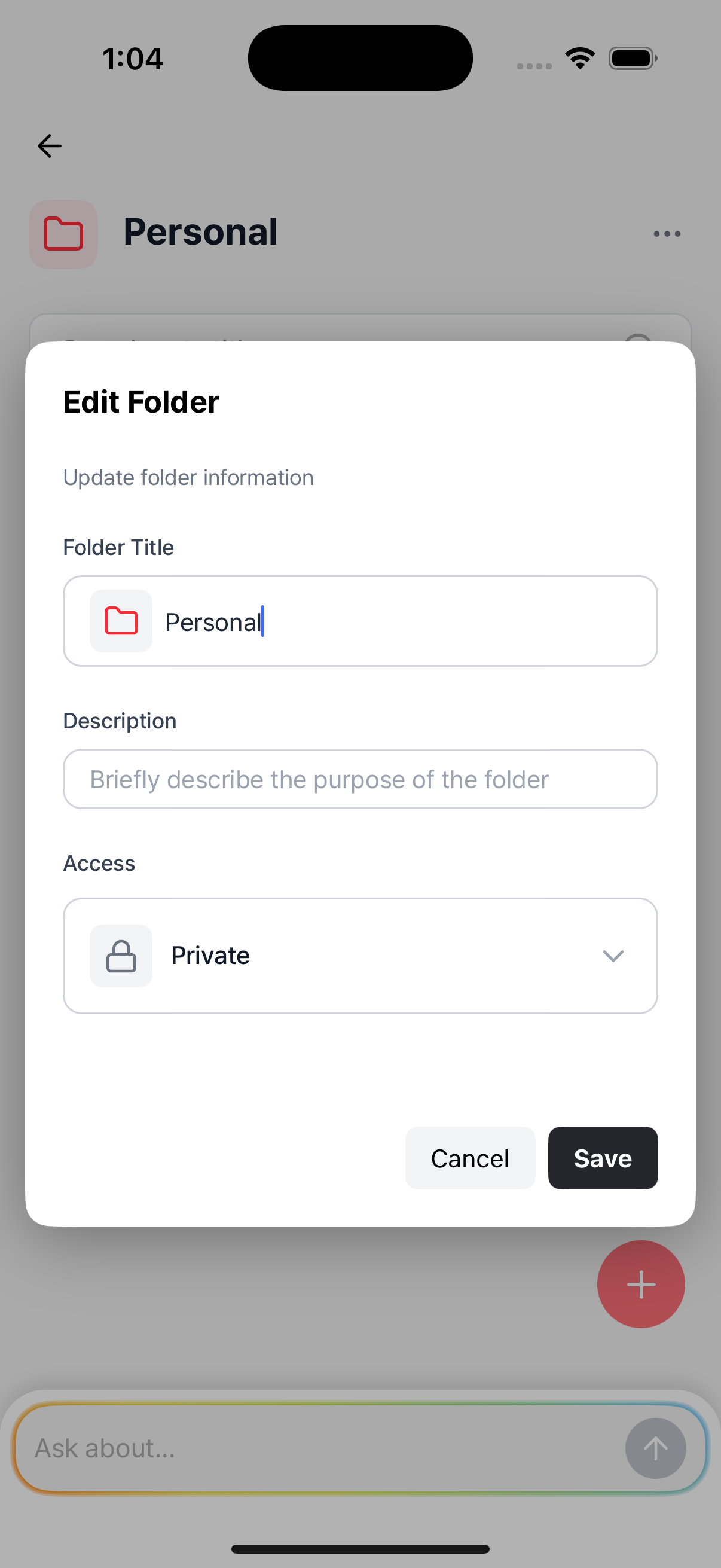
To edit a folder, press and hold it on the main screen or tap the ••• icon inside the folder. You can rename the folder, change its color and description, or manage invited team members. Modify folders as needed to maintain organization.
3) Adding Notes to a Folder
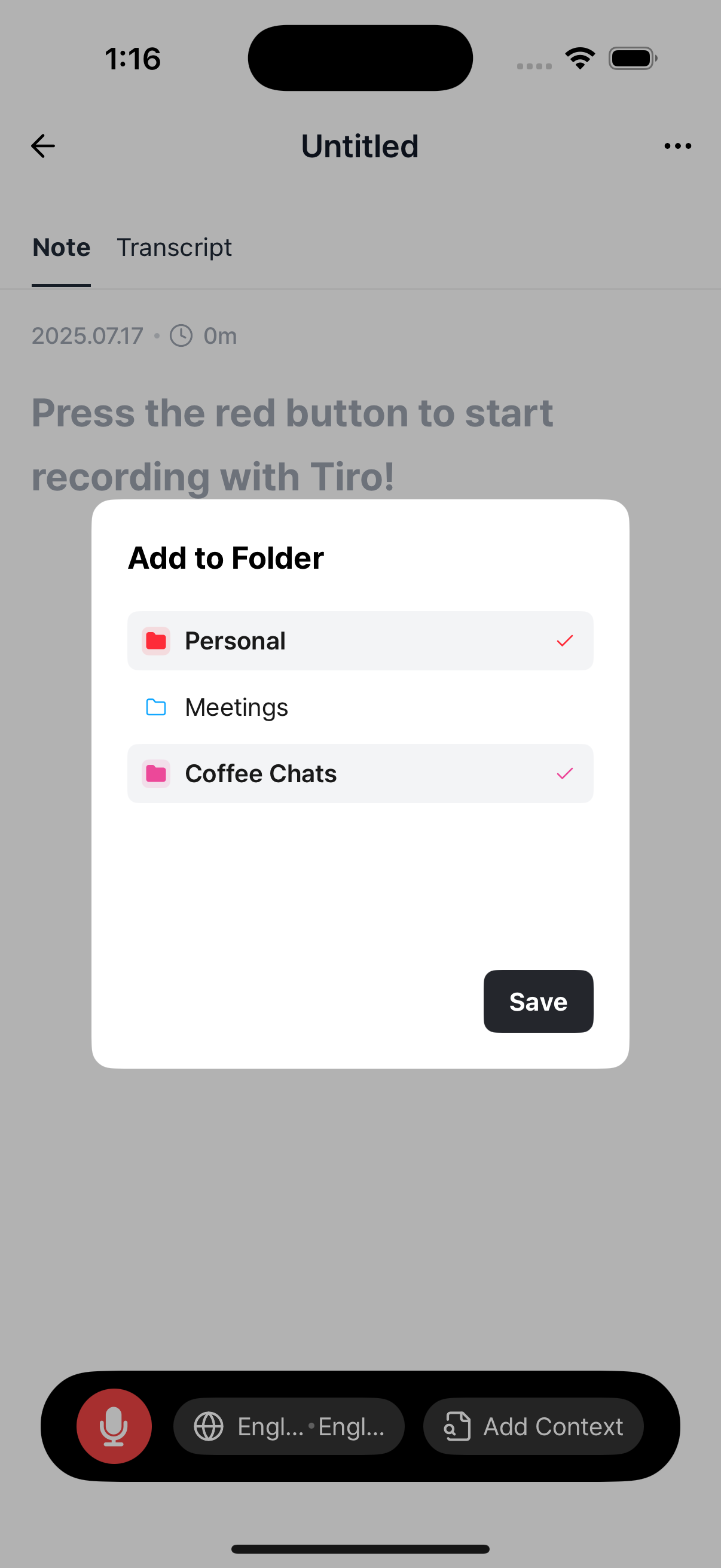
On the note screen, tap the ••• icon in the upper right corner and select "Add to Folder." You can add notes to a folder or move them to another folder. Remember to press save to apply changes.
4) Folder-based Ask Tiro
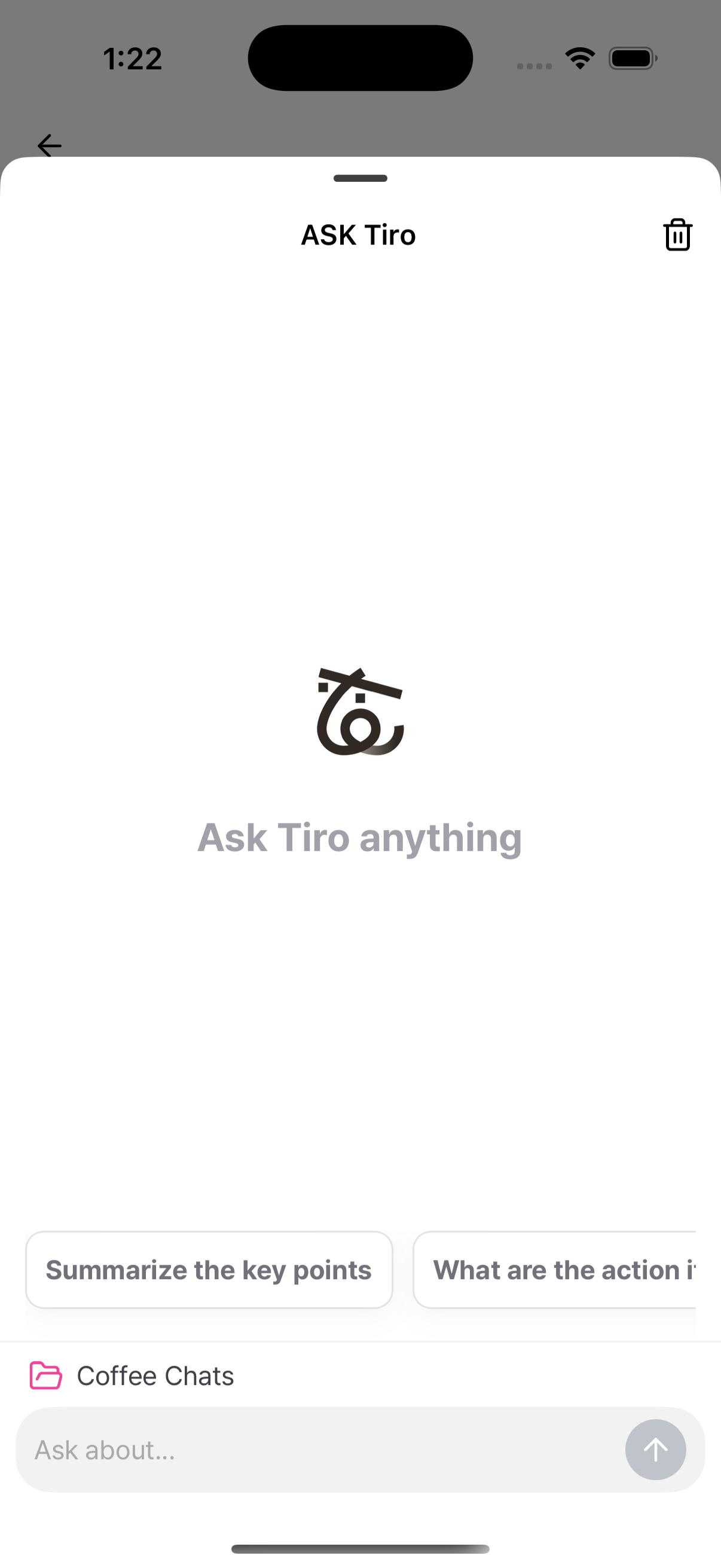
Folder-based Ask Tiro allows you to get quick answers based on all notes within a specific folder.
Example questions:
[Customer Interview Folder] "What were the most common complaints from customer interviews this month?"
[Team Weekly Meeting Folder] "Summarize the key decisions from last week's meeting."
Tiro analyzes the notes in the folder swiftly and provides accurate answers. Easily access and leverage valuable information from past conversations anytime.
Important notes:
Answers are limited to notes within the selected folder.
Specific questions will yield more precise answers.
Team Folder Collaboration Features
Note!
These features are only available to teams using the Team Plan. If you'd like to try the Team Plan, please email us at partners@theplato.io. For more details, refer to the Team Plan Guide.
Team Folders
Tiro offers team folders to help manage notes more efficiently among team members. When creating a team folder, select one of these options:
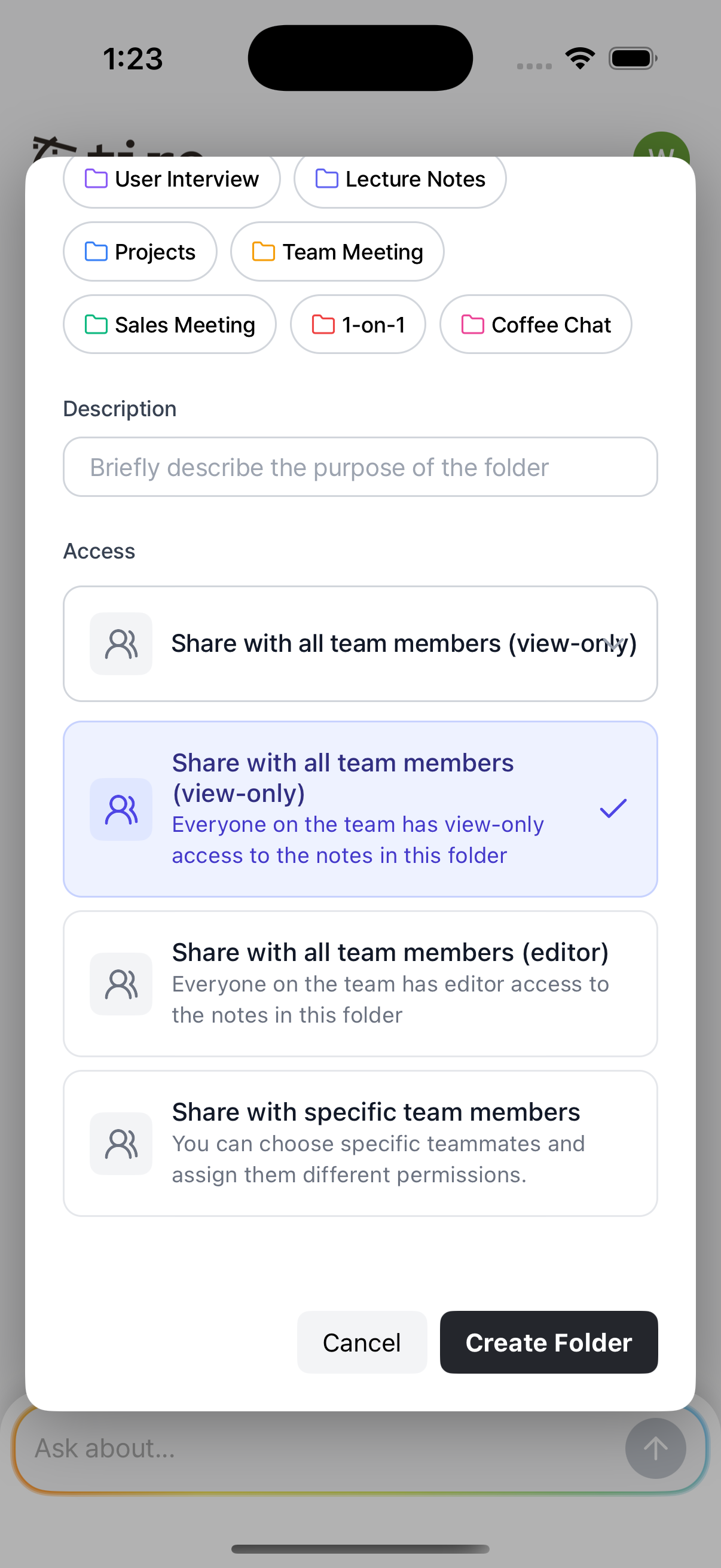
1. Automatically shared with the entire team (view-only)
All team members can immediately access new notes added to the folder, but with view-only permissions. Members cannot add or remove notes in this folder. To grant editing rights to specific notes, manage permissions separately.
2. Automatically shared with the entire team (Editor)
All team members automatically receive editor permissions, allowing them to freely add or remove notes from the folder.
3. Shared only with selected team members
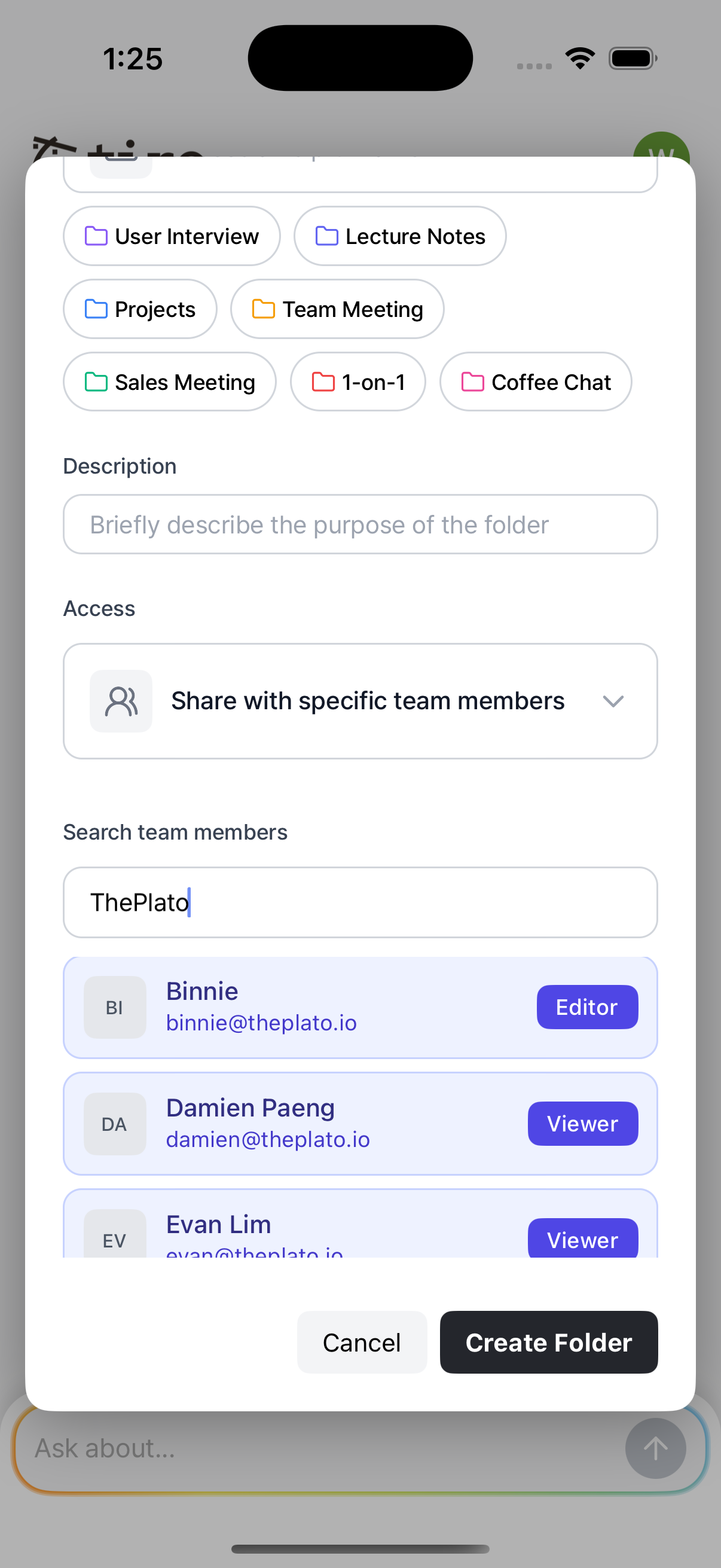
Share folders exclusively with chosen team members.
Permissions (Viewer/Editor) can be individually assigned per team member.
Tap the "Editor" or "Viewer" button to the right of a team member's name to toggle their permissions between Editor and Viewer.
Further Permission Details:
Folder Editing and Deletion: Only team admins and folder creators can rename, modify access, or delete folders. Invited members cannot edit or delete folder settings.
Note Editing: Members with view-only folder access can edit specific notes if given separate editing permissions.
Adding/Removing Notes: Members with editor permissions can freely add or remove notes from the folder, except those shared with them as viewer in other folders.
Ask Tiro: All members, regardless of permissions, can freely use the Ask Tiro feature within shared folders.
Sharing Individual Notes with Team Members
To share individual notes, tap the ••• icon on the note screen and select "Invite." Easily invite team members as collaborators from a comprehensive team list without needing to input email addresses manually.
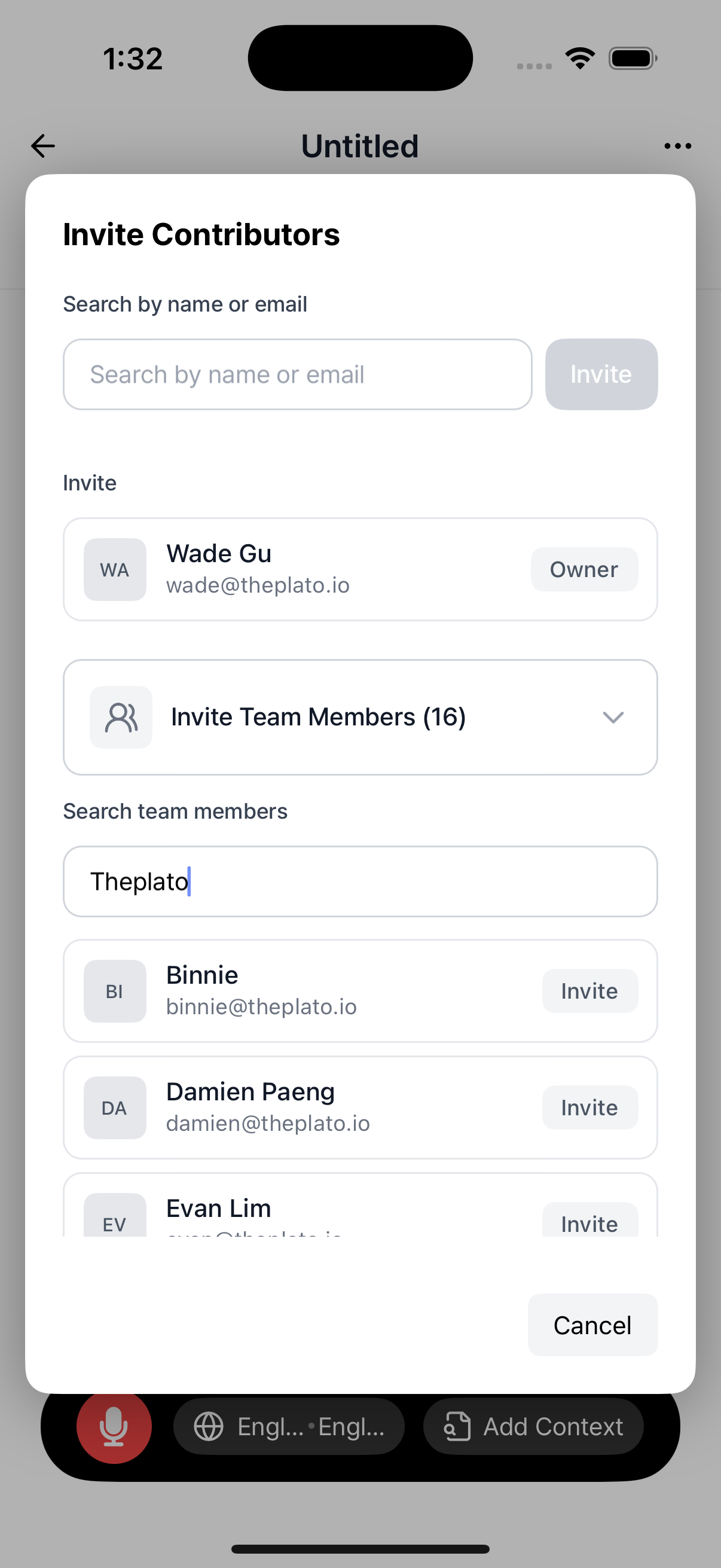
Note owners can assign viewer or editor permissions.
Conclusion
With folders now available on mobile, managing your notes has become even easier. Organize your notes systematically and leverage Ask Tiro for quick, context-specific information. Streamline your digital space to efficiently manage your work and daily life. Take advantage of this new feature to enhance your productivity and convenience!